No matching settings
Try a setting name or a word such as mitigation, timeframes, Fib or alerts.
Multi-Timeframe
Choose which zones and timeframes to scan, then decide when nearby zones should form a cluster.
MTF display mode
Choose BBs/HOBs to display Breaker Block zones, ICT OBs to display active ICT impulse Order Blocks, or Both to display both kinds of zone.
Choices: BBs/HOBs, ICT OBs, Both
TF selection mode
Auto chooses nearby timeframes from the full supported list. Auto from Selected chooses nearby timeframes only from the boxes you have checked. Selected Only uses your checked timeframes up to the external-timeframe limit. In Selected Only, include your chart timeframe explicitly or through its All group if you want it scanned.
Choices: Auto, Auto from Selected, Selected Only
Auto search: lower TF count
Sets how many neighboring timeframes below your chart timeframe to include in either Auto mode. The overall limit is 40 external timeframes.
Range: 0 to 20
Auto search: higher TF count
Sets how many neighboring timeframes above your chart timeframe to include in either Auto mode. The overall limit is 40 external timeframes; higher-timeframe selections are reduced first if an automatic selection would exceed the limit.
Range: 0 to 20
Merge nearby BBs into Cluster (%)
Lets nearby zones join a cluster when the gap between them is within this percentage of the established cluster height. A cluster can gain one nearby join, including an edge touch; zones with a positive price overlap can still merge freely. Set to 0 to merge only zones with a positive overlap.
Range: 0 to 50; step 0.5
Only show OBs overlapping with BBs
In Both display mode, hides ICT Order Block zones unless the final single zone or Order Block cluster overlaps a Breaker Block or Hidden Order Block zone or cluster.
Timeframes
Choose individual timeframes or groups. Auto ignores these checkboxes; Auto from Selected uses them as its pool; Selected Only scans the selected pool. The shared limit is 40 external timeframes. A selected chart timeframe does not use an external slot.
Over 40 TFs: keep HTF
Applies only when Selected Only would scan more than 40 external timeframes. Off keeps the lowest selected timeframes and skips the highest; On keeps the highest and skips the lowest. The cap is shared across all groups. The chart timeframe uses no external slot.
All Odd TF
Selects every listed timeframe in this group. Leave it off to select individual checkboxes instead. Available choices: 35m, 89m, 96m, 144m, 216m, 233m, 288m, 432m. These selections are used by Auto from Selected and Selected Only, not by Auto.
All LTF
Selects every listed timeframe in this group. Leave it off to select individual checkboxes instead. Available choices: 1m, 2m, 3m, 5m, 10m, 15m, 30m, 45m, 1h, 2h, 3h. These selections are used by Auto from Selected and Selected Only, not by Auto.
All MTF
Selects every listed timeframe in this group. Leave it off to select individual checkboxes instead. Available choices: 4h, 5h, 6h, 7h, 8h, 9h, 10h, 12h, 15h, 18h, 20h, 23h. These selections are used by Auto from Selected and Selected Only, not by Auto.
All HTF (46; limit 40)
Selects all 46 higher-timeframe choices in the day, week and month bundles. Individual bundle controls are inactive while this is on. The shared limit is still 40 external timeframes, so use Over 40 TFs: keep HTF to choose which excess selections are skipped. A selected chart timeframe does not count toward the external limit.
HTF day bundles
Each bundle checkbox selects exactly the timeframes shown in its label, without adding the timeframes in between. You can combine bundles. Turn All HTF off to edit them. Available bundles: 1D | 2D; 3D | 4D; 5D | 6D; 7D | 8D; 9D | 10D; 11D | 12D; 13D | 14D; 15D | 16D; 22D | 33D | 44D; 47D | 55D; 66D | 72D. All bundles share the external-timeframe limit. D means days, W means weeks and M means months.
HTF week bundles
Each bundle checkbox selects exactly the timeframes shown in its label, without adding the timeframes in between. You can combine bundles. Turn All HTF off to edit them. Available bundles: 1W | 2W; 3W | 4W; 5W | 6W; 7W | 8W; 9W | 10W | 33W. All bundles share the external-timeframe limit. D means days, W means weeks and M means months.
HTF month bundles
Each bundle checkbox selects exactly the timeframes shown in its label, without adding the timeframes in between. You can combine bundles. Turn All HTF off to edit them. Available bundles: 1M | 2M; 3M | 4M; 5M | 6M; 7M | 8M; 9M | 10M; 11M | 12M. All bundles share the external-timeframe limit. D means days, W means weeks and M means months.
OB Pivot Filter
Use nearby candles to check whether an Order Block sits at a local turning point.
Strict OB Pivot filter
Checks whether the Order Block candle forms a local swing high or swing low compared with nearby candles. Enable this to use the pivot controls below. With it off, the left- and right-candle pivot checks are ignored.
Only strict pivot OBs
For qualifying setups, takes the direction only from strict pivots: a swing low is bullish and a swing high is bearish. The other formation rules still have to pass. Requires Strict OB Pivot filter.
Pivot candles to the left
Sets how many earlier candles the Order Block must stand above for a swing high, or below for a swing low. Higher values make qualifying pivots more selective. Requires Strict OB Pivot filter.
Range: 0 to 20
Pivot candles to the right
Sets how many later candles must confirm the Order Block as a turning point. Higher values require more candles to close, so confirmation takes longer. Some setups may be tracked before the full right-side check finishes. Requires Strict OB Pivot filter.
Range: 0 to 20
Require same-direction candle
Requires the candle before the Order Block to have the same direction as the Order Block candle. Requires Strict OB Pivot filter.
Use wicks for pivot detection
Compares full candle highs and lows rather than candle bodies when checking a pivot. Neighboring wicks can make the required swing more selective. Requires Strict OB Pivot filter.
OB candle color filter
Strict directional requires the Order Block candle to match the expected swing-candle direction. Flexible with neighbor check allows more variation when the surrounding candles confirm the structure.
Choices: Strict directional, Flexible with neighbor check
Optimization
Keep the chart readable and control how zones are displayed while price updates.
Show cluster BBs separately
Shows individual Breaker Block fills within one shared cluster outline instead of a single merged fill. Nearby labels are combined into readable rows, with up to five distinct entries and a count for additional zones. Timeframe strength controls the fills and outline. Allow some right margin on your chart so the labels stay readable.
Hide live mitigated BBs/HOBs
Previews how incoming price updates affect existing zones while a candle is still forming. Zones that fail the live check are hidden; surviving zones preview their remaining boundaries. The confirmed state is unchanged, so this preview can change before the candle closes. Live refresh uses more processing.
Show levels near price
Limits displayed zones to a range above price, below price, or on both sides. Off shows zones without this distance filter. This changes the display only.
Choices: Off, Higher, Lower, Both
Range from price (%)
Sets the size of the display range as a percentage of the current price. Applies when Show levels near price is Higher, Lower or Both.
Range: 0 or higher; step 0.25
Appearance
Choose the zone colors, text colors and label weight.
Bullish BB Color
Sets the fill color and transparency of bullish Breaker Block zones.
Bearish BB Color
Sets the fill color and transparency of bearish Breaker Block zones.
OB Color
Sets the fill color and transparency of displayed Order Block zones.
BB Text Color
Sets the text color of Breaker Block and Hidden Order Block labels, including cluster label rows.
OB Text Color
Sets the text color of Order Block labels.
Bold text labels
Makes the zone text labels bold. Turn it off for regular-weight text.
Auto-Fib
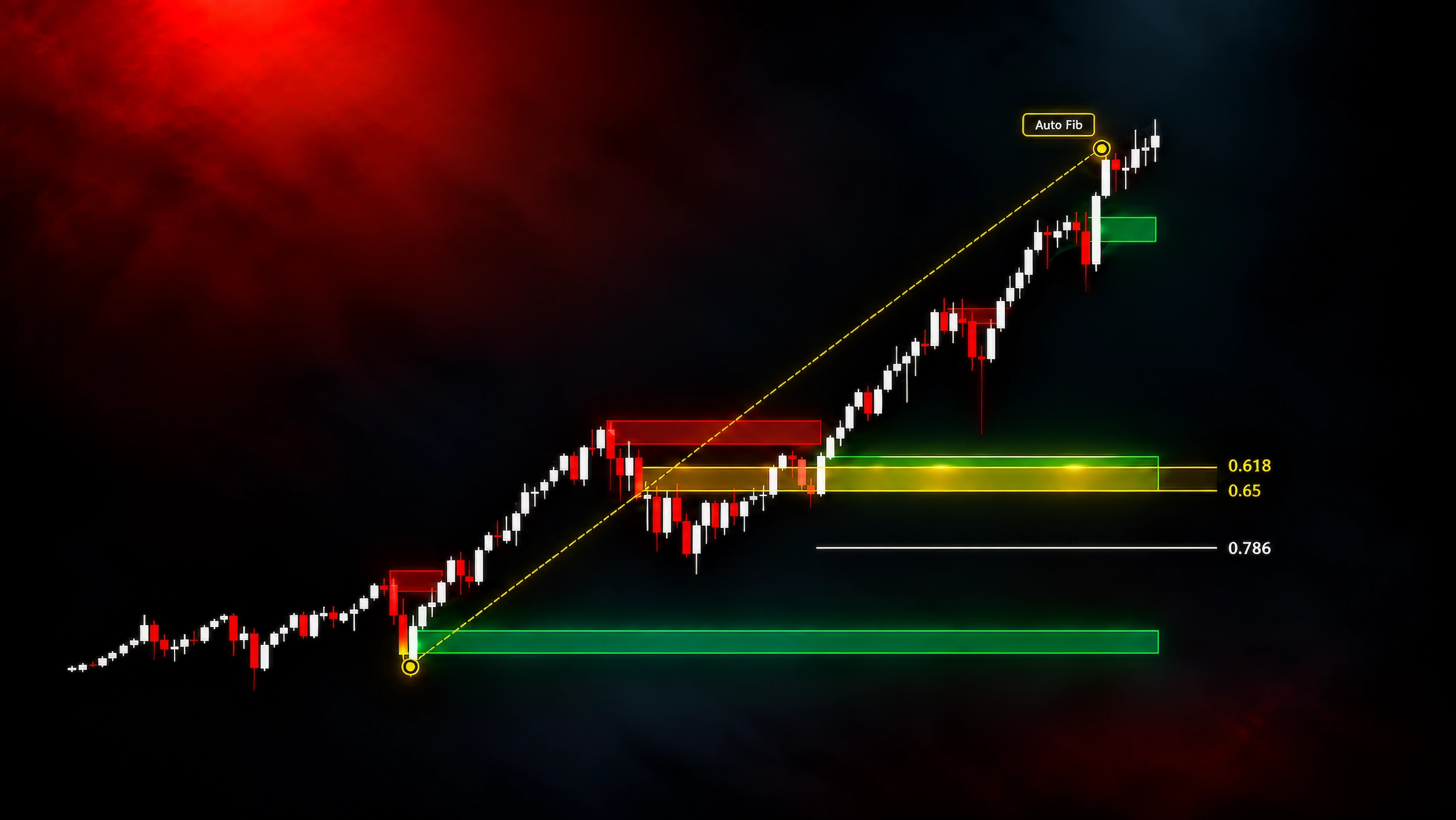
Find Fibonacci levels that overlap Breaker Blocks using swings from your chart candles. These are the current detection controls; confirmation and quality checks handled automatically are not separate settings.
Enable Auto-Fib
Enables Auto-Fib searches using swings from your current chart candles. It checks selected Fib levels against the chosen Breaker Block zones, including zones from other timeframes. Available matches are added to zone labels. The latest unfinished swing may be previewed, but a preview does not count as confirmed alert evidence.
Reversal strength
Choose a strength from 1 to 5 for the pullback needed to confirm the start and end of a Fib swing. Higher values can require a deeper closing pullback; lower values can accept a shallower one. Default 2 keeps the standard behavior. Other confirmation checks still apply, so some swings may be unchanged between levels. Requires Auto-Fib.
Choices: 1, 2, 3, 4, 5
Minimum retracement (% of swing)
Sets the minimum later pullback as a percentage of the whole Fib swing. At 0%, no extra pullback is required. For a move from 100 to 120, a 25% retracement requires price to reach 115. The check uses wick prices from closed chart candles within the search window, before the next eligible swing endpoint. Unfinished previews are handled separately. Requires Auto-Fib.
Range: 0 to 100; step 1
Require strict BOS
Requires a candle within a confirmed Fib swing to close beyond a qualifying structure level from before the swing began. A bullish swing must close above the earlier high; a bearish swing must close below the earlier low. The structure level must also lie beyond the Breaker Block by more than half its height. Wick-only breaks or missing qualifying levels do not pass. Unfinished previews remain provisional. Requires Auto-Fib.
Auto-Fib Levels & Scale
Select the retracement levels to check and how their prices are calculated. Enable Auto-Fib first.
0.5
Includes the 0.5 retracement level when checking for a Fib match inside a Breaker Block zone. Requires Auto-Fib.
GP (0.618-0.65)
Checks the Golden Pocket from 0.618 to 0.65 as one band. It qualifies when that band overlaps or touches the Breaker Block zone; the two boundaries do not both have to sit inside the zone. Requires Auto-Fib.
0.705
Includes the 0.705 retracement level when checking for a Fib match inside a Breaker Block zone. Requires Auto-Fib.
0.786
Includes the 0.786 retracement level when checking for a Fib match inside a Breaker Block zone. Requires Auto-Fib.
0.886
Includes the 0.886 retracement level when checking for a Fib match inside a Breaker Block zone. Requires Auto-Fib.
Fib price scale
Linear uses standard arithmetic price spacing. Log only uses logarithmic spacing. Both checks both calculations and accepts a match from either. Individual levels must land inside the zone; the Golden Pocket band must overlap it. No extra matching tolerance is added. This setting is independent of whether the chart itself is in linear or log scale. Requires Auto-Fib.
Choices: Linear, Both, Log only
Auto-Fib Drawings
Display matching Fib swings and levels from your chart timeframe. Drawings are optional and do not control whether an alert can include a confirmed Fib match.
Draw Fibs
Draws matching Fib swings and their matching levels from chart candles. Golden Pockets are shaded; labels show the ratios, and each level has a fixed color. Confirmed matches and provisional matches from the latest unfinished swing use the same drawing style. Requires Auto-Fib.
Show Fib swing line
Shows a faint dashed line connecting the two swing endpoints. Applies when Auto-Fib and Draw Fibs are enabled.
Maximum Fib zone length (chart bars)
Limits how far Fib level and Golden Pocket drawings extend from the end of a swing, measured in chart bars. This changes their display length, not which swings qualify as matches. Requires Auto-Fib and Draw Fibs.
Range: 10 to 10,000
Alerts
Choose which zone events to report. Enable Pro alerts, then create a TradingView alert for HT Pro using Any alert() function call. Recreate the TradingView alert after changing the settings you want it to use.
Enable Pro alerts
Enables the Pro alert system. After choosing the events below, create a TradingView alert for HT Pro and select Any alert() function call. Changing the indicator settings does not update an already-created TradingView alert; recreate it to use the new settings.
AutoFib alert mode
Off leaves Fib confluence out of the alert filter. Include confluence adds confirmed Fib information when available without requiring it. Require Fib waits for a qualifying confirmed match before the first signal. A cluster qualifies if any member does. Searches use chart candles for each selected Breaker Block timeframe, including higher-timeframe targets. Requires Pro alerts, Auto-Fib and at least one selected Fib level. With no levels selected, Fib filtering is inactive.
Choices: Off, Include confluence, Require Fib
Send FIB UPDATE alerts
After a first signal has been sent, sends an update when a new qualifying combination of source timeframe, Fib level, direction relationship or price scale appears for the active zone. Each combination is reported once. Works independently of Fib text and drawings. Requires an active AutoFib alert mode.
Keep CHANGED alerts after Fib confluence is lost
In Require Fib mode, keeps sending CHANGED messages for a zone whose first alert has already been delivered, even if its Fib match is later lost or unavailable. The message reports its current Fib status. This does not relax qualification for initial signals, cluster events, near-price alerts or touches.
Alert direction
Choose Both for all directions, Long for bullish setups only, or Short for bearish setups only. Requires Pro alerts.
Choices: Both, Long, Short
Alert types
All includes individual Breaker Block and Hidden Order Block changes as well as cluster changes. Clusters only excludes individual-zone messages and watches cluster events, including enabled cluster near-price and touch alerts. Requires Pro alerts.
Choices: All, Clusters only
New confirmed delay (bars)
Delays a new confirmed individual-zone alert by the chosen number of candles on that zone's own timeframe. At 0, the alert is sent when the zone is confirmed. Applies to individual zones in All alert-types mode, not to Clusters only.
Range: 0 to 10
Alert grouping
Combined groups events into fewer messages. Separate sections splits messages by section. Every event sends one message per event. Large bursts may be queued and delivered on later live price updates. Requires Pro alerts.
Choices: Combined, Separate sections, Every event
Min cluster size (0 = Off)
Requires eligible zones to belong to a cluster with at least the selected number of members. Set to 0 to disable this filter. Uses the current cluster merge-distance setting. Requires Pro alerts.
Choices: 0, 2, 3, 4, 5
Near-price distance (%)
Sets how close price must come to a zone before one near-price alert is sent. At 0, near-price alerts are off. Watches individual zones and clusters in All mode, or clusters alone in Clusters only mode. Zones already near price do not alert immediately, and price already inside a zone does not trigger a near-price message.
Range: 0 to 5; step 0.1
Also alert at half distance
After the main near-price alert, allows another alert when price reaches half the selected distance. For example, a 1% distance can be followed by a 0.5% alert. Requires a nonzero Near-price distance.
Alert on touch
Sends one alert when price first touches an eligible individual zone or cluster. A newly watched or changed zone does not reuse an earlier touch from the current candle. Clusters only mode watches cluster touches alone. Requires Pro alerts.
Mitigation changes (BB)
Reports changes to the partial mitigation of an eligible Breaker Block or Hidden Order Block. Requires Pro alerts.
FVG count changes (BB)
Reports changes in the qualifying Fair Value Gap count of an eligible Breaker Block or Hidden Order Block. Requires Pro alerts.
Direction conversions (BB / cluster)
Reports qualifying direction conversions for individual zones or clusters. Requires Pro alerts.
Cluster member changes
Reports when the members of an eligible cluster change. Requires Pro alerts.
Cluster updates (bounds / labels)
Reports changes to an eligible cluster's boundaries or labels. Requires Pro alerts.
Cluster dissolution
Reports when an eligible cluster breaks apart. Requires Pro alerts.
Alert on BB/HOB removal
Reports when an individual Breaker Block or Hidden Order Block is removed. Available in All alert-types mode; it is inactive in Clusters only. Requires Pro alerts.
OB Alert Confluence
Add overlapping ICT Order Block information to Pro alerts. These options add context; they do not create separate Order Block alerts.
Add OB confluence
Adds matching ICT Order Block overlap information to Breaker Block, Hidden Order Block and cluster alerts. Order Blocks do not generate standalone alerts through this option. Requires Pro alerts.
Allow 2-candle ICT impulse
Lets the ICT Order Blocks used for alert confluence qualify after two impulse candles instead of three. Requires Pro alerts and Add OB confluence.
Only use OB clusters
Adds Order Block confluence only when the overlapping ICT Order Block belongs to a qualifying Order Block cluster. Standalone Order Blocks are ignored. Uses the existing overlap and nearby-merge rules. Requires Pro alerts and Add OB confluence.